Best Background Loops for Church LED Walls and Slideshows
A good moving background makes a church screen feel warm and alive without distracting from worship. Here's how to pick backgrounds that keep lyrics readable, and how to set them to loop in the software most churches use.
What makes a good worship background
- Slow, gentle motion. Soft light rays, drifting bokeh and slow gradients. Fast movement tires the eyes during a long song.
- Calm colours behind the text. The middle of the screen, where lyrics sit, should be fairly even in brightness.
- A seamless loop. Songs and sermons run longer than any clip, so the background must repeat with no visible jump. All Telar Clips backgrounds marked Loop do.
- No words or logos in the background itself, so it works for any song.
Our picks by moment
- Worship and prayer: heavenly white light rays, warm soft light rays, golden sunset clouds.
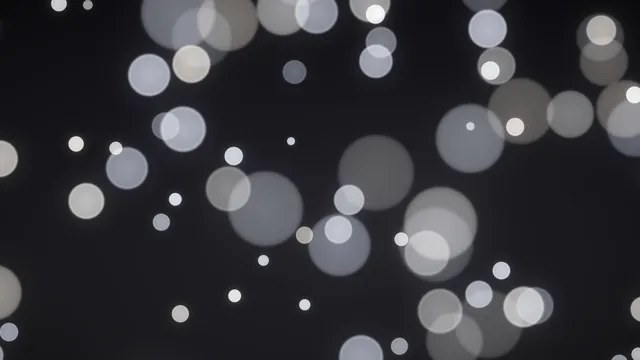
- Joyful songs: golden bokeh lights and silver and white bokeh.
- Christmas services: twinkling string lights, falling snow at night, and the glowing star lanterns.
- Graduations, weddings and anniversaries: navy and gold bokeh and pink and rose bokeh.
- Children's ministry: our illustrated scenes, like the children's choir by a country chapel.
Keeping lyrics readable
- Use large, bold, sans-serif text: around 60 to 80 points on a 1080p screen.
- Use white text with a soft shadow, or a thin dark outline.
- Show no more than 2 to 4 lines at a time.
- If the background is bright, lower its brightness or add a dark layer at 20 to 40% opacity behind the text.
- Test from the back row before the service. What looks fine on a laptop can be hard to read from far away.
How to loop a background in common software
PowerPoint or Google Slides
- Insert the video (Insert → Video → This Device in PowerPoint) and stretch it to fill the slide.
- Right-click it and choose Send to Back, then add your text on top.
- In PowerPoint's Playback tab, set Start: Automatically and tick Loop until Stopped. In Google Slides, open Format options → Video playback and choose to play automatically.
ProPresenter, EasyWorship and similar programs
Import the clip into your media library and set it as the background for a song or a whole playlist, with looping on. Your lyrics then sit on top as normal slides. Menu names differ by program and version, so look for "background" and "loop" in the media settings.
LED walls with unusual sizes
Many LED walls aren't 16:9. Choose a background without important details near the edges (bokeh, gradients and light rays are ideal) and use your software's fill or crop option so it covers the whole wall without stretching.
Before the service: a quick checklist
- Download the clips in advance; don't rely on church Wi-Fi.
- Play each background for a full minute to check the loop and the brightness.
- Prepare one calm "fallback" background for anything unplanned.
- Keep the same background for a whole song, so the screen doesn't jump between verses.
Free for churches
All our clips are free for church services, livestreams, events and programs, with no sign-up and no credit required. See the licence for details, or read free video backgrounds: what you can and can't do.