How to Use a Green Screen Video in CapCut (Step by Step)
A green screen clip lets you drop an effect, like falling confetti, snow or a glowing frame, on top of your own video. CapCut can remove the green for free, on your phone or on a computer. Here's exactly how.
What a green screen clip is
Every green screen clip on Telar Clips has the effect (confetti, hearts, balloons, a light frame) on a flat, bright green background. The green is a "key colour": your editor finds that one colour and makes it see-through. Whatever is underneath, such as your selfie video, a product photo or a greeting, shows through, and only the effect stays on top.
This works best when the green is even and doesn't appear anywhere in the effect itself, which is how our clips are made.
What you need
- CapCut on your phone (Android or iPhone) or on a computer. The free version is enough.
- Your main video or photo, the "background" layer.
- A green screen clip. Download one free here; no sign-up needed.
Step by step on a phone
- Start a new project and add your main video or photo first. This is the bottom layer.
- Tap Overlay, then Add overlay, and choose the green screen clip you downloaded. It appears as a second layer above your video.
- Pinch the overlay to make it fill the screen, or place it where you want it.
- With the overlay selected, tap Remove BG (in some versions it's called Remove background), then Chroma key.
- Drag the colour picker circle onto the green area. The green will start to disappear.
- Raise Intensity slowly until all the green is gone. If parts of the effect start disappearing too, lower it a little.
- Raise Shadow a little to soften the edges, so the effect blends in naturally.
- Play it back, then tap Export. 1080p at 30 fps matches our clips.
Step by step on a computer
- Import your main video and the green screen clip into the media panel.
- Drag your main video onto the timeline, then drag the green screen clip onto the track above it.
- Select the green screen clip. In the panel on the right, open Video, then Remove BG, and switch on Chroma key.
- Use the colour picker to click the green, then adjust Intensity and Shadow the same way as on a phone.
Menu names change a little between CapCut updates, but the tool is always called Chroma key.
Tips for clean results
- Pick the green, not the effect. Click a spot of plain green away from the confetti or sparkles.
- Go slowly with Intensity. Too high and soft parts of the effect, like glow or thin edges, vanish too.
- Green fringe on the edges? Raise Shadow a little. On a computer you can also lower the overlay's opacity slightly so it blends in.
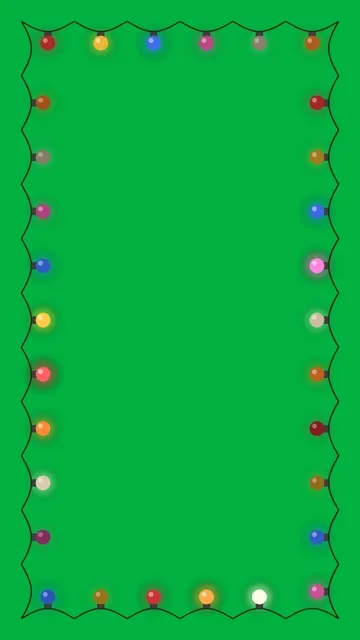
- Making a TikTok or Reel? Set the project to 9:16 and zoom the overlay to fill the screen. Some of our clips, like the Christmas lights frame, come in a ready-made vertical version.
- Want the effect behind you instead? Put it under your video and remove the background of your own video instead, using Remove BG → Auto removal.
Ideas to try
- Confetti over a "We won!" or graduation clip.
- Falling snow over a Christmas greeting or a family photo.
- Floating hearts over a wedding or anniversary video.
- A glowing light frame around a product photo for a holiday sale.
Prefer a light effect without any keying? Try our overlays: they use the Screen blend mode instead of a green screen. See how to use overlays.